
Two thousand dollars buys you a genuinely capable AI workstation in 2026 — one that can run 13B parameter models comfortably, fine-tune smaller models locally, and handle the kind of AI-assisted development work that would otherwise require a cloud API subscription eating $200–$400 a month. The catch is that $2,000 forces real trade-offs, and the wrong choices at this budget leave you with a machine that underdelivers on the workloads that matter.
I’ve helped configure several home lab setups in this price range over the past eighteen months, and the same mistakes come up repeatedly: overspending on CPU, underspending on VRAM, buying storage that doesn’t match the workload, and picking a platform that limits future expansion. This guide is the build I’d actually recommend — with the reasoning behind each choice, not just a parts list.
Define Your Workload First
Before touching a parts list, be honest about what you’re actually building this for. The optimal $2,000 AI lab looks different depending on your primary use case, and the differences are significant enough to change fundamental component choices.
Local LLM inference — running models like Llama 3, Mistral, Qwen, or Gemma locally via Ollama or LM Studio — is almost entirely GPU-bound. VRAM capacity determines which models you can run at full precision, and memory bandwidth determines how fast tokens generate. CPU, RAM, and storage matter much less.
Fine-tuning small models — adapting a 7B or 13B model on your own dataset using LoRA or QLoRA — is also primarily GPU-bound but adds RAM requirements. You need enough system RAM to handle the dataset preprocessing pipeline without thrashing, and fast enough storage to load training data without becoming the bottleneck.
AI-assisted development — using local models as coding assistants, running embedding models for RAG pipelines, experimenting with multimodal models — is the most balanced workload. It benefits from fast inference but tolerates quantized models more gracefully, which reduces VRAM requirements.
For this guide, the target is a machine that handles all three — primarily optimized for local inference and fine-tuning, capable enough for development workflows.
The GPU Decision: Everything Else Follows From This
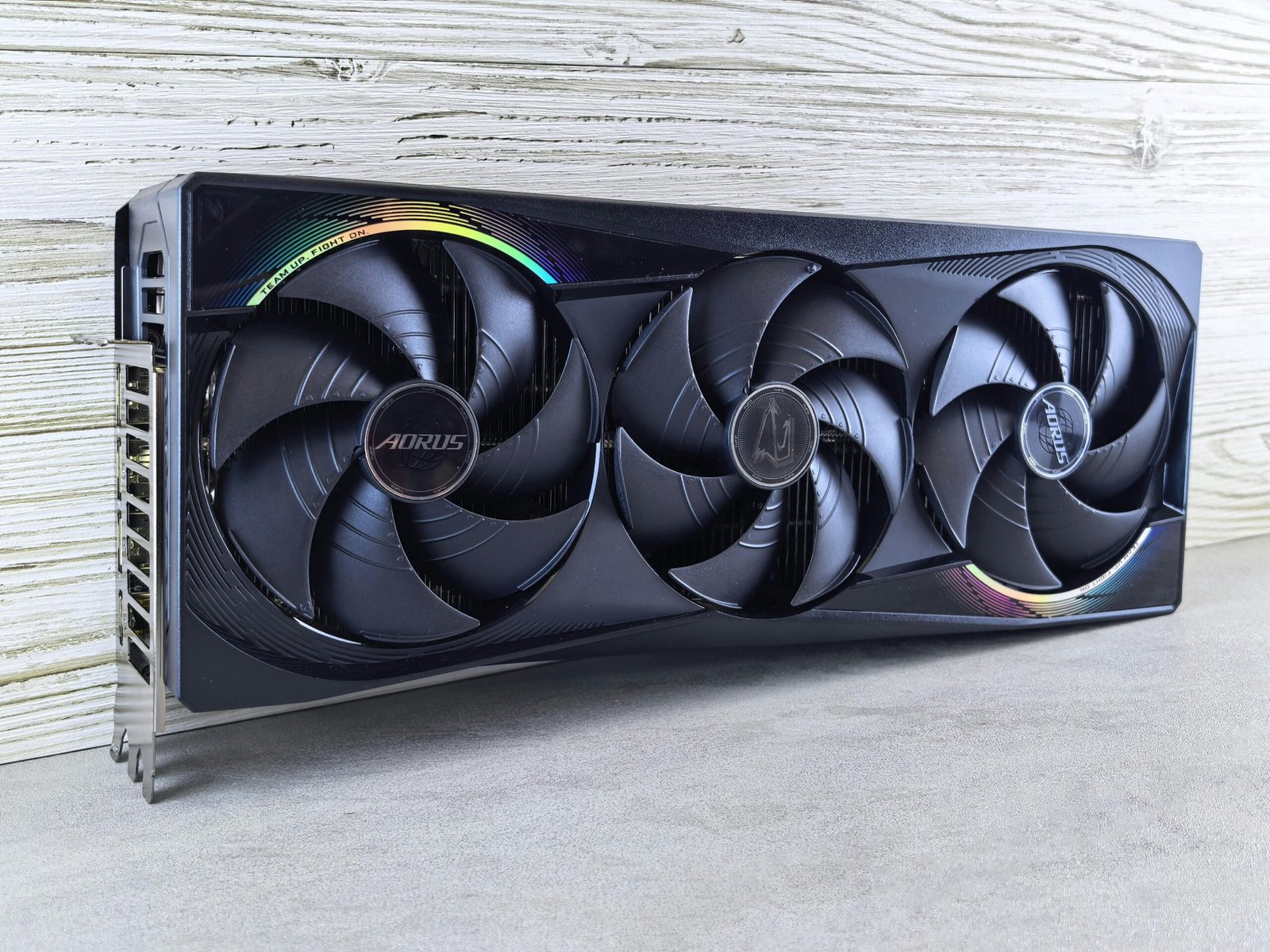
At $2,000, your GPU budget should be $700–$900. That’s non-negotiable if local AI is the primary purpose. Skimping here to buy a better CPU or faster storage is the most common mistake in this budget range.
The RTX 4070 (12GB VRAM) is the minimum serious option. It runs 7B models at full BF16 precision with headroom to spare, handles 13B models in Q4 quantization at reasonable speeds, and supports CUDA — which means compatibility with essentially every major ML framework. Token generation speed on a 7B Llama model sits around 40–50 tokens per second in Q4, which is fast enough for interactive use.
The RTX 4070 Ti Super (16GB VRAM) is the upgrade that actually changes your capability ceiling. Sixteen gigabytes lets you run 13B models at full precision, load larger context windows without VRAM overflow, and handle some 34B models in aggressive quantization. If you can stretch the budget by $150–$200, this is where to put the extra money.
The RTX 3090 (24GB VRAM) appears on the used market for $400–$600 and deserves serious consideration. Twenty-four gigabytes of VRAM is transformative for local LLM work — you can run 34B models in Q4, load 70B models with extreme quantization, and work with larger batch sizes during fine-tuning. The trade-off is power consumption (350W TDP vs 220W for the 4070 Ti Super) and the lack of Ada Lovelace architecture improvements for inference efficiency. For pure VRAM-per-dollar, the used 3090 is the best value in this budget range.
For local LLM inference, VRAM capacity matters more than compute performance. A slower GPU with more VRAM will outperform a faster GPU with less VRAM on models that don’t fit entirely in the smaller VRAM pool — because the alternative is CPU offloading, which is dramatically slower.
CPU: Good Enough Is Good Enough
This is where most AI home lab guides go wrong, recommending flagship CPUs that add $200–$400 to the build for marginal AI workload benefit. For local inference and fine-tuning, the CPU’s primary jobs are feeding data to the GPU, running the Python preprocessing pipeline, and handling the OS overhead. A mid-range modern CPU does all of this without becoming the bottleneck.
The AMD Ryzen 7 7700X (8 cores, ~$200) is the sweet spot. It has enough PCIe lanes for a full-bandwidth GPU connection, sufficient single-core performance for Python preprocessing, and supports DDR5 memory on AM5 — a platform with years of future upgrade headroom. You do not need a 12-core or 16-core CPU for this workload. The extra cores sit idle during GPU-bound training and inference.
If you’re buying Intel, the Core i5-13600K is the equivalent tier and similarly appropriate. Avoid anything above these tiers for a pure AI inference and fine-tuning machine — the cost-benefit ratio degrades sharply.
System RAM: 32GB Is the Floor, 64GB Is Better
RAM sizing for an AI home lab follows a different logic than gaming or general workstation use. You need enough RAM to hold your dataset in memory during preprocessing, run the Python environment with all its dependencies loaded, and handle the OS overhead — all simultaneously.
For 7B–13B model fine-tuning with datasets up to about 10GB, 32GB of DDR5 is workable but tight. You’ll hit memory pressure during some preprocessing pipelines and large context inference sessions. Sixty-four gigabytes eliminates these constraints and costs roughly $80–$120 more than 32GB at current DDR5 pricing — money well spent given the friction it prevents.
Speed matters less than capacity here. DDR5-5600 is the sweet spot for AM5 platforms. Spending extra for DDR5-6400 or higher provides no measurable benefit for AI workloads — the GPU’s HBM bandwidth dwarfs system memory bandwidth so completely that system RAM speed is never the constraint.
Storage: NVMe for OS and Models, HDD for Datasets
Model files and your OS environment belong on NVMe — specifically a 2TB Gen4 drive. Loading a 7B model from NVMe into VRAM takes a few seconds. Loading it from a spinning drive takes 30–60 seconds. For interactive use where you’re switching between models frequently, this difference is genuinely annoying in practice.
Large training datasets do not need to live on NVMe. A 4TB or 8TB 7200RPM hard drive costs $70–$120 and is entirely adequate for storing datasets that you load sequentially into RAM at the start of a training run. The sequential read speed of a modern HDD (150–200 MB/s) is sufficient for this use case, and the cost per terabyte is roughly one-tenth of NVMe.
This two-tier storage approach — NVMe for hot data, HDD for cold datasets — is how most professional ML engineers structure their local storage, and it’s the right call at this budget.
The PSU: Don’t Undersize This
An RTX 4070 Ti Super has a 285W TDP. Add 65W for the CPU under load, 30W for memory and storage, and you’re at roughly 380W system draw at peak. An 850W PSU gives you adequate headroom — enough to handle transient power spikes without throttling, and enough to add a second GPU later if you expand the build.
750W is technically sufficient for a single-GPU build at this tier, but the $20–$30 difference to reach 850W buys meaningful headroom. Going below 750W is a false economy that risks system instability under sustained GPU load.
Operating System and Software Setup
Ubuntu 22.04 LTS is the recommendation for a dedicated AI lab machine. CUDA support is more mature on Linux, most ML tooling assumes a Linux environment, and you avoid the overhead of Windows running in the background. If you need Windows for other work on the same machine, a dual-boot setup works fine — allocate the NVMe partition accordingly.
The software stack: CUDA 12.x, Python 3.11 via conda, PyTorch 2.x with CUDA support, and Ollama for local model serving. For fine-tuning, Hugging Face’s transformers library with the PEFT extension handles LoRA and QLoRA workflows on this hardware. LM Studio provides a GUI alternative if you prefer not working in the terminal for model management.
What This Build Can Actually Do
With the RTX 4070 Ti Super (16GB) configuration, you can run Llama 3 70B in Q2 quantization at 8–12 tokens per second — usable for non-interactive tasks. Llama 3 13B at Q4 runs at 35–45 tokens per second, which is fast enough for interactive coding assistance. Llama 3 8B at BF16 full precision runs at 50–70 tokens per second.
For fine-tuning, QLoRA on a 7B model with a 10,000-sample dataset takes roughly 45–90 minutes depending on sequence length and batch size. That’s fast enough for iterative experimentation. Fine-tuning 13B models is possible but pushes VRAM limits — you’ll need aggressive gradient checkpointing and smaller batch sizes.
For context: this is roughly equivalent to running four simultaneous API calls to a hosted inference service, indefinitely, without per-token costs. At $0.20 per million tokens for a comparable hosted model, the hardware pays for itself within six to twelve months of regular use for a developer doing AI-assisted work eight hours a day.
The Upgrade Path
The AM5 platform supports up to Ryzen 9000 series processors, so the CPU upgrade path is clear. More relevant for AI work: the B650 motherboard has two PCIe x16 slots on most models, meaning a second GPU can be added later — though you’ll need to upgrade to a 1200W+ PSU and verify NVLink or PCIe bandwidth sharing behavior for your specific use case.
The more practical near-term upgrade is RAM. Starting at 32GB and upgrading to 64GB as budget allows is a reasonable phased approach if the $2,000 ceiling is firm.
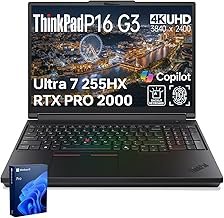
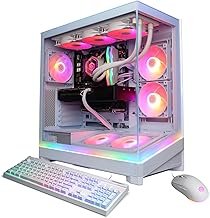
For a comparison of pre-built workstations in this performance tier, see our Best AI Workstations 2026 guide, which covers both DIY and pre-built options at various budget points.
Frequently Asked Questions
Can I use a Mac for a home AI lab instead?
Yes, and Apple Silicon Macs are genuinely competitive for local LLM inference due to unified memory architecture. A Mac Studio with M4 Max and 64GB unified memory runs 70B models smoothly via llama.cpp and Core ML. The trade-off is cost — that configuration costs $2,000–$2,500 for the Mac alone — and the lack of CUDA means some ML frameworks have limited or no support. For pure inference, Apple Silicon is excellent. For CUDA-dependent training workflows, the custom PC build wins.
Is 16GB VRAM enough for serious AI work?
For local inference of models up to 13B parameters at full precision, yes. For 34B models, you’ll need Q4 or lower quantization. For 70B models, you’ll need Q2 or CPU offloading, both of which significantly reduce inference speed. Sixteen gigabytes is a capable tier for most home lab use cases but not a ceiling you’ll never feel. Twenty-four gigabytes (RTX 3090 used) meaningfully expands the capability envelope.
What’s the difference between Ollama and LM Studio?
Ollama is a command-line model server — you run models via terminal commands or API calls, and it integrates with tools like Continue (VS Code extension) for local AI coding assistance. LM Studio is a GUI application that provides a ChatGPT-like interface for local models plus an OpenAI-compatible local server. Both use llama.cpp under the hood. Ollama is better for developers wanting programmatic access; LM Studio is easier for non-developers.
Do I need a water cooler for the CPU?
No. A quality 240mm AIO or a large air cooler like the Noctua NH-D15 is more than adequate for a Ryzen 7 7700X in an AI workstation context. The CPU runs at moderate loads during AI workloads — the GPU is doing the heavy lifting. Expensive custom water loops are unnecessary and add maintenance complexity without meaningfully benefiting AI performance.
Can this build run Stable Diffusion?
Yes. Stable Diffusion XL image generation runs well on 16GB VRAM — you can generate 1024×1024 images in 10–20 seconds depending on the sampler and step count. SDXL Turbo and FLUX models also run comfortably. The 16GB VRAM allows batch generation and higher resolution outputs that 8GB cards struggle with. This build handles image generation as a secondary workload without any compromises.
WRITTEN BY

Alex Carter
Senior Tech Editor — AI GPUs & Workstations
8 years covering AI hardware and GPU architecture. Has configured and benchmarked multiple home AI lab builds across budget tiers, from $1,000 entry setups to multi-GPU training rigs.
Specialties: NVIDIA & AMD GPUs · AI inference benchmarking · Workstation builds · Local LLM deployment
Stay up to date with the latest AI hardware reviews, buying guides, and analysis at AiGigabit.com. Bookmark us for daily updates.